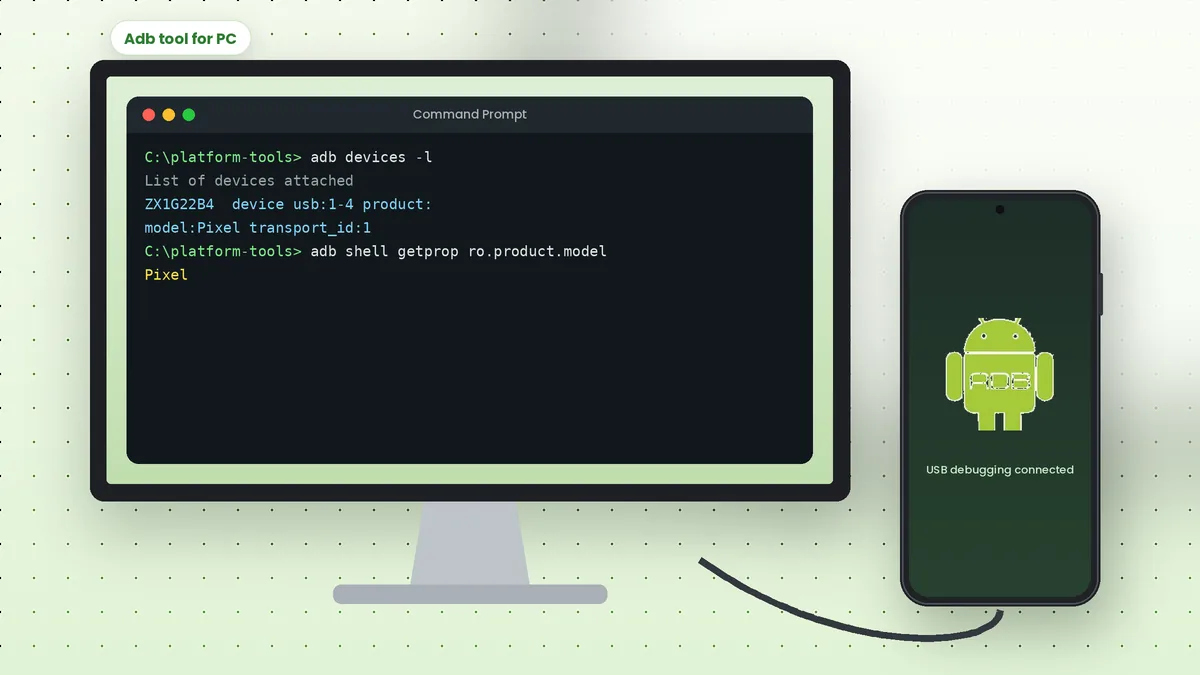
Adb tool for PC setups turn a desktop or laptop into a control centre for your Android phone. Once Android Debug Bridge is installed and USB debugging is enabled, you can install apps, copy files, capture the screen and read system logs straight from your keyboard.
Why Use ADB on a Computer
A computer offers a full keyboard, large screen and easy scripting, which makes repetitive phone tasks faster. ADB also reaches functions that the phone's own menus hide, such as package management and detailed logcat output.
Developers rely on it for testing builds, while everyday users find it handy for removing preinstalled apps for the current user, backing up photos or recovering a phone that will not boot normally.
Supported Computer Systems
Google publishes SDK Platform-Tools for the three main desktop systems. Each package contains the same core tools, so commands behave the same everywhere.
| System | Package | Notes |
|---|---|---|
| Windows | platform-tools-latest-windows.zip | May need a brand USB driver |
| macOS | platform-tools-latest-darwin.zip | Also available through Homebrew |
| Linux | platform-tools-latest-linux.zip | May need udev rules for USB access |
Install Platform-Tools on Your PC
Download the package for your system from the download section, extract it to a permanent folder and, for convenience, add that folder to your PATH. Windows users can follow our detailed Windows walkthrough.
macOS users can run the Homebrew command below instead. On Debian or Ubuntu, the adb package installs a working version, though the ZIP from Google is usually more current.
brew install --cask android-platform-tools
sudo apt install adb
Prepare the Android Phone
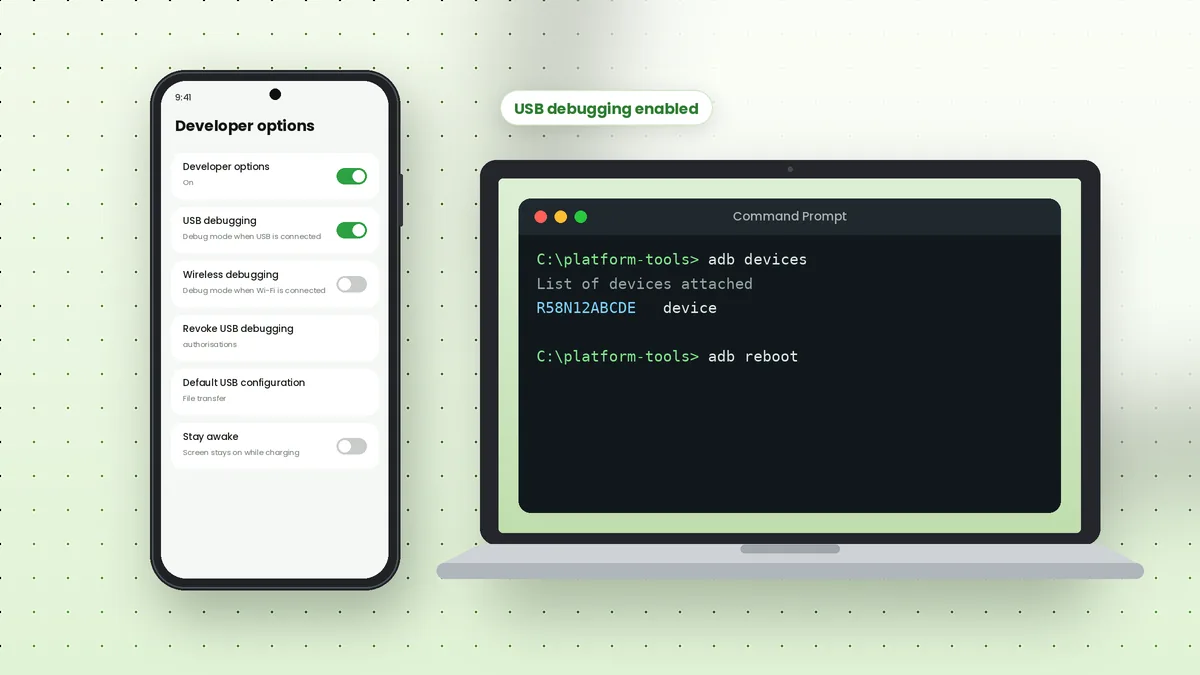
Open Settings, go to About phone and tap Build number seven times. Return to Settings, open Developer options and enable USB debugging. Keep the screen unlocked during the first connection.
Use a USB cable that supports data. Many cheap cables only charge, which leaves ADB unable to see the phone even when everything else is correct.
Connect and Authorise the PC
Plug the phone in and run the following command. The first time, the phone shows the computer's RSA key fingerprint and asks whether to allow USB debugging.
adb devices -l
Tick "Always allow from this computer" and tap Allow. The device then appears with the word device, along with details such as model and transport ID when you use the -l flag.
Everyday Tasks from Your PC
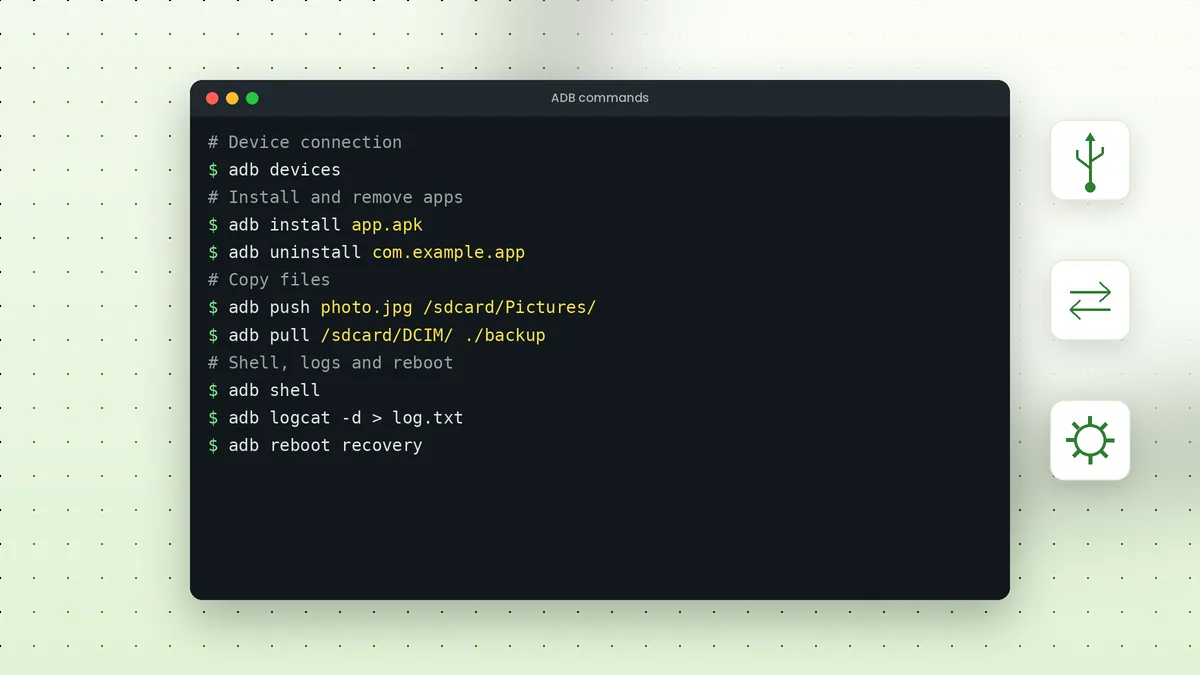
With the connection ready, a small set of commands covers most daily needs. Each one runs from the same terminal window.
adb install app.apkinstalls an app from your computeradb push file.jpg /sdcard/Pictures/copies a file to the phoneadb pull /sdcard/DCIM/ .copies the camera folder to your PCadb exec-out screencap -p > screen.pngsaves a screenshot to your PCadb logcatstreams live system logs
Going Wireless After Setup
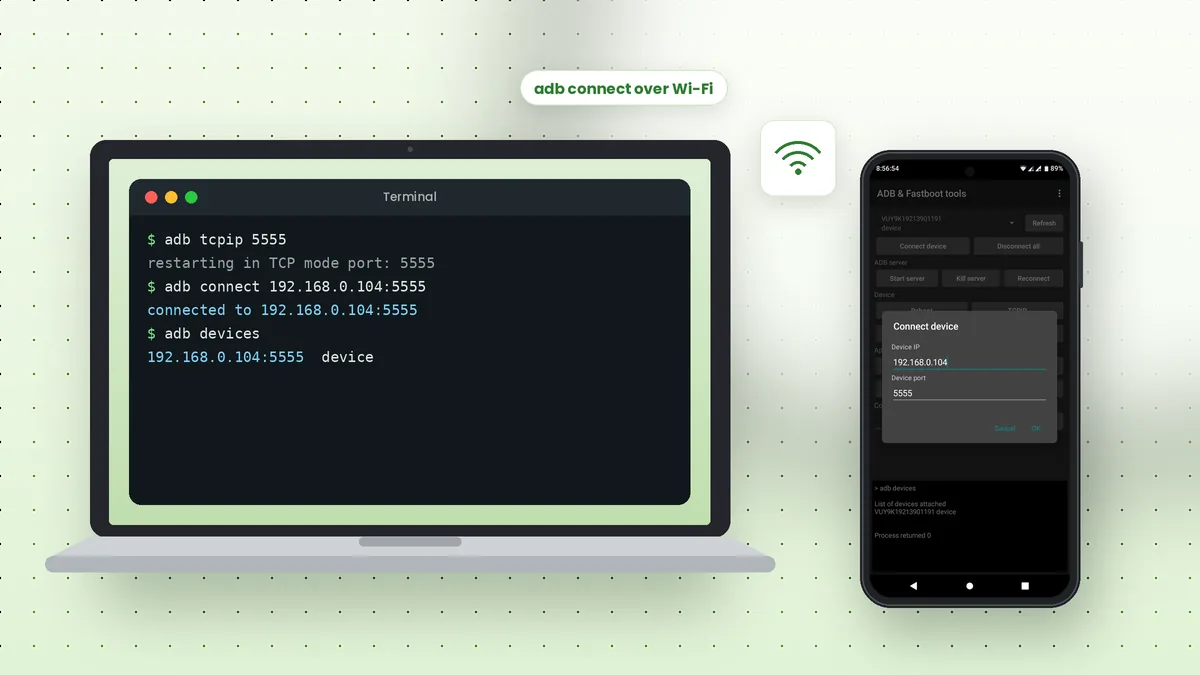
After the first USB connection, you can drop the cable. Android 11 and newer support pairing over Wi-Fi from Developer options, and older versions can switch to TCP mode with adb tcpip 5555. Our ADB over Wi-Fi article covers both methods.
Choosing a Cable and USB Port
Connection quality affects how reliable ADB feels. A short, well-made cable that supports data gives the most stable results, especially for large file transfers or long logcat sessions.
Plug into a port on the computer itself rather than a hub or keyboard port. On desktops, rear ports connect directly to the motherboard and tend to be more dependable than front-panel ports.
Working with Several Devices
ADB can manage many phones and emulators at the same time. When more than one is connected, commands need a target, or ADB stops with an error asking you to choose.
adb devices
adb -s ZX1G22B4 shell getprop ro.product.model
You can also set the ANDROID_SERIAL environment variable to a serial number, so every command in that terminal session targets the same device without typing -s each time.
Good Habits on a Shared Computer
ADB access is powerful, so a few simple habits keep your phone protected when other people use the same PC.
- Avoid ticking "Always allow" on computers you do not own
- Revoke USB debugging authorisations after using a borrowed machine
- Turn off USB debugging when you no longer need it
- Keep platform-tools in your own user folder rather than a shared location
Saving Logs and Reports to Your PC
A computer makes it easy to keep diagnostic files for later. Saving logs is useful when you report a bug to an app developer or compare behaviour before and after an update.
adb logcat -d > phone-log.txt
adb bugreport report.zip
The first command saves the current log buffer as a text file you can open in any editor. The second creates a full diagnostic report as a ZIP archive, which takes a few minutes and contains detailed system information, so share it only with people you trust.
Mirroring the Screen
Many people pair ADB with screen-mirroring software that uses it in the background to show and control the phone on a computer monitor. Such tools rely on the same USB debugging connection, so a working adb devices result is the first thing to confirm before setting one up.
Frequently Asked Questions
You do need the platform-tools files, but they run straight from an extracted folder without a setup wizard.
Yes. Platform-tools runs on current Windows versions. Most connection problems come from missing USB drivers rather than the Windows version.
Yes. Run adb devices to list serials, then target one with adb -s SERIAL command.
ADB only works after you approve the computer on the phone. Only authorise computers you own and trust, and revoke old authorisations in Developer options.
Conclusion
Adb tool for PC setups take only a few minutes: install platform-tools, enable USB debugging, authorise your computer and confirm with adb devices. From there, apps, files, screenshots and logs are a single command away.
Keep the ADB commands list open while you practise, and the routine tasks quickly become second nature.
 Adb Tool Samsung: Set Up USB Debugging on Galaxy Phones
 ADB Commands List: Essential Commands with Examples
 How to Use ADB Over Wi-Fi Without a Cable?