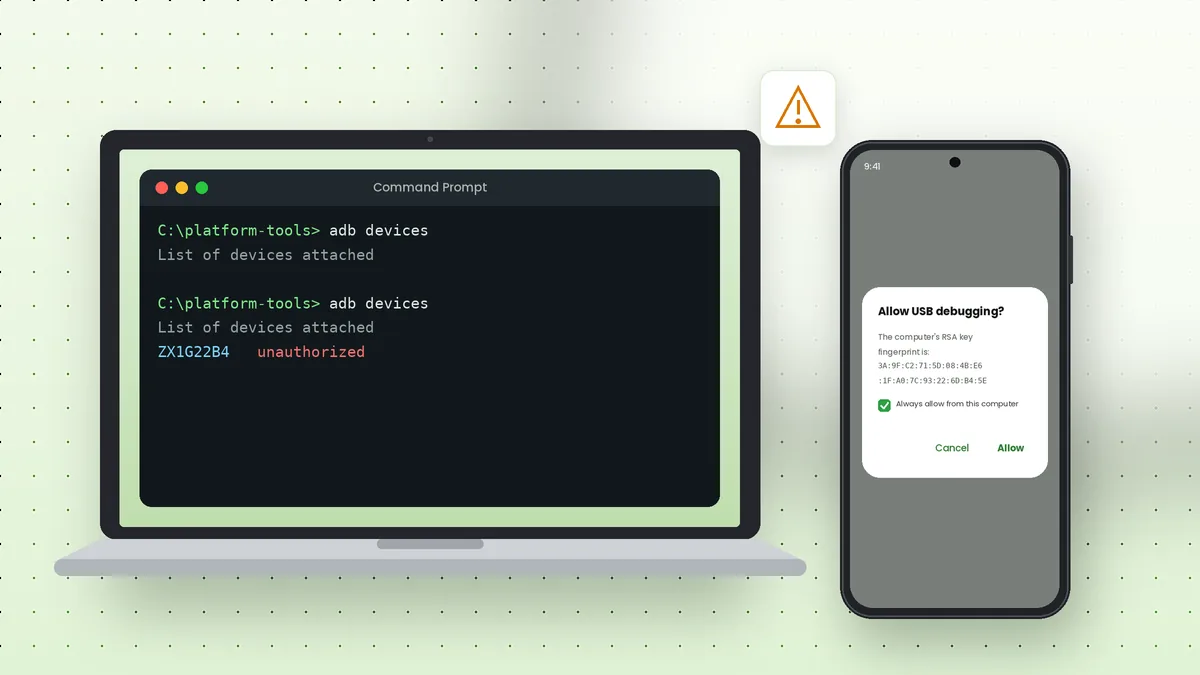
ADB device not found errors appear when adb devices returns an empty list, or when a command reports "no devices/emulators found". The cause is almost always one of a handful of simple issues, and working through them in order usually solves the problem in minutes.
Read What ADB Is Telling You
The device list shows a state next to each serial number. That state points straight to the fix, so check it before changing anything.
| State shown | Meaning |
|---|---|
| Empty list | The computer cannot see the phone at all |
| unauthorized | The phone has not approved this computer |
| offline | The connection exists but is not responding |
| device | Everything works |
Check the Cable and Port
Charge-only cables are the most common hidden cause. They power the phone but carry no data, so ADB never sees it. Try a cable you know transfers files, ideally the one supplied with the phone.
Plug directly into the computer rather than a hub or front-panel port, and try another USB port. Gently check the phone's port for lint, which can stop the data pins from making contact.
Confirm USB Debugging Is On
Software updates and resets sometimes turn Developer options off. Open Settings, then Developer options, and check that USB debugging is enabled. If Developer options is missing, tap Build number seven times again.
Pull down the notification shade after connecting. Choosing File transfer as the USB mode helps some phones expose the ADB interface properly.
Fix the Unauthorized State
Unauthorized means the phone is waiting for you to approve the computer's RSA key. Unlock the screen and look for the "Allow USB debugging?" dialog, then tap Allow.
If no dialog appears, open Developer options, tap Revoke USB debugging authorisations, unplug the cable and plug it back in. On the computer, restarting the server forces a fresh request.
adb kill-server
adb devices
Install or Update USB Drivers on Windows
Windows needs a driver for the phone's ADB interface. Open Device Manager while the phone is connected. An entry with a yellow warning sign, or an unknown "Android" device, points to a missing driver.
Install the Google USB Driver for Pixel phones, or your manufacturer's driver for other brands, such as the Samsung Android USB Driver. Our Samsung setup article covers Galaxy phones in detail.
Check udev Rules on Linux
Linux may detect the phone but deny permission, which shows as "no permissions" in the device list. Installing your distribution's Android udev rules package, or adding a rule for your phone's vendor ID, solves it.
After adding rules, reload them or reconnect the phone, and make sure your user belongs to the group the rules mention, often plugdev.
Restart the ADB Server
A stuck server causes empty lists and offline devices. Stopping and starting it clears most of these glitches without restarting the computer.
adb kill-server
adb start-server
adb devices
Also close other programs that bundle their own copy of ADB, such as phone management suites or older Android Studio versions. Two different ADB versions fighting over the same server port cause constant disconnects.
Update Platform-Tools
Very old ADB versions may not support newer Android releases or features like wireless pairing. Download the latest package from the download section and replace your old files.
Running adb version shows which version you have, and comparing it with Google's release notes confirms whether an update is due.
Wireless Connections That Fail
For Wi-Fi sessions, an empty list usually means the phone changed IP address, restarted or left TCP mode. Reconnect with the current IP and port as described in our ADB over Wi-Fi article.
- Confirm both devices share the same network
- Use the connect port, not the pairing port
- Repeat
adb tcpip 5555over USB after a phone restart
Test with Another Computer or Phone
When nothing seems to work, swapping one piece of the setup narrows the problem quickly. Connect the same phone to a different computer, or a different phone to the same computer.
If the phone works elsewhere, the issue lies with your computer's drivers, ports or ADB version. If another phone works on your computer, focus on the first phone's settings, port or USB mode.
Recovery and Bootloader Modes
ADB behaves differently outside normal Android. In the bootloader, the phone answers to Fastboot instead, so adb devices stays empty while fastboot devices lists it.
Recovery mode may support ADB only for sideloading, depending on the recovery installed. Our ADB vs Fastboot article explains which tool sees the phone in each state.
Quick Checklist
Run through this list before trying anything more complex. It covers the fixes that solve most cases.
- Data cable connected directly to the computer
- Phone unlocked with USB debugging enabled
- Computer approved on the "Allow USB debugging?" prompt
- Correct USB driver installed on Windows
- ADB server restarted and platform-tools up to date
When the Device Shows as Offline
An offline state means the computer sees the phone but cannot exchange commands with it. This often happens after the phone wakes from sleep, after a long idle connection or when two ADB versions clash.
Unplug the cable, wait a few seconds and reconnect, then run adb kill-server followed by adb devices. If it persists, restart the phone and update platform-tools, since very old ADB versions sometimes report newer phones as offline.
Emulators and Virtual Devices
Android emulators appear in the device list with names such as emulator-5554. If an emulator is missing, make sure it has fully booted, because ADB connects only after the virtual device finishes starting. Closing and reopening the emulator, or running adb kill-server, refreshes the list. When both an emulator and a phone are connected, use -d for the USB phone or -e for the emulator.
Conclusion
ADB device not found problems nearly always trace back to the cable, USB debugging, authorisation, drivers or a stuck server. Checking the device state first, then working through these fixes in order, gets most phones listed as device again quickly.
Once it connects, head to the ADB commands list to pick up where you left off.
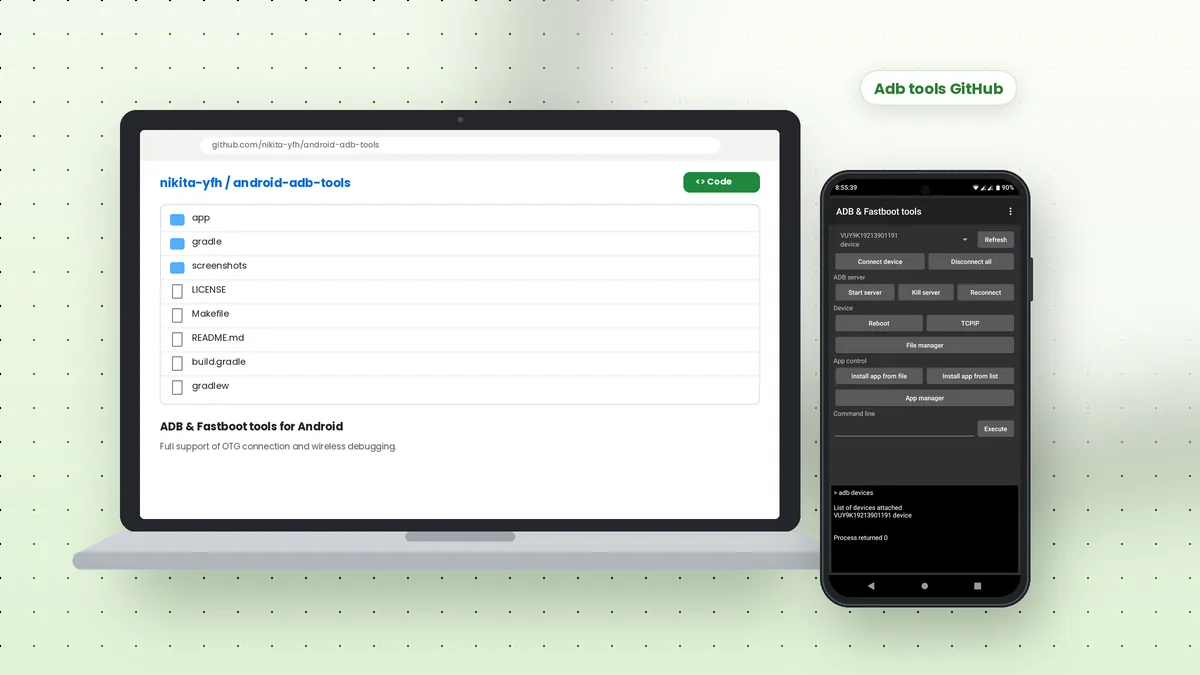 Adb Tools GitHub: Android ADB and Fastboot App Overview
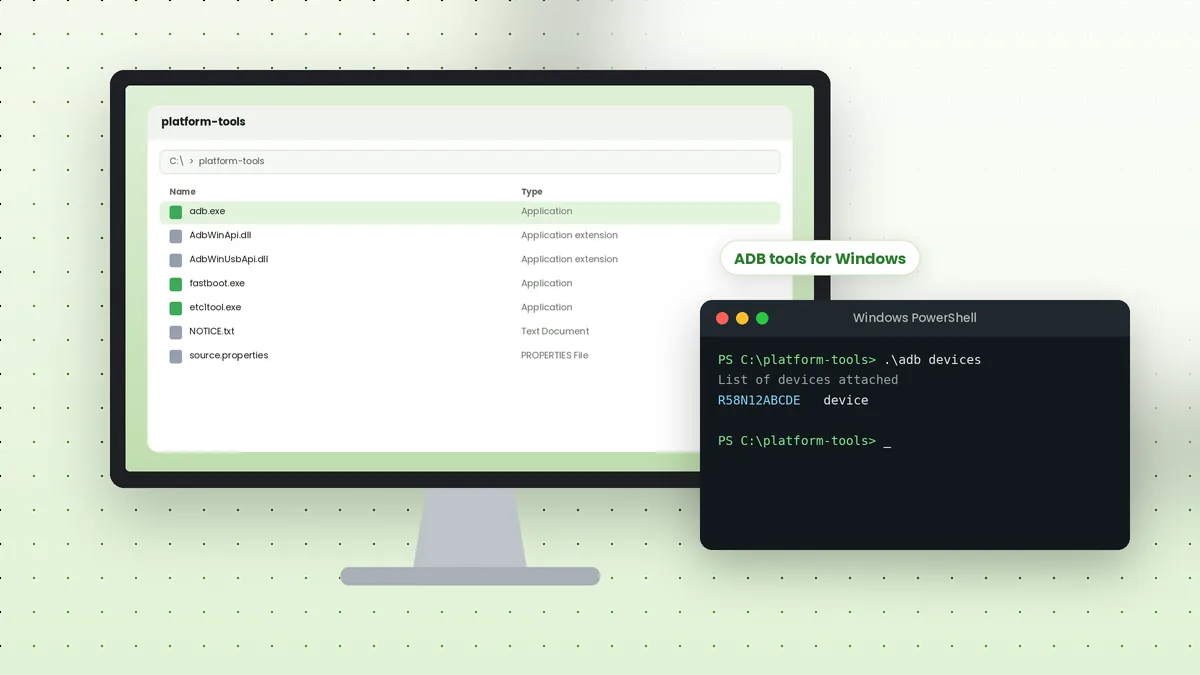 ADB Tools Download for Windows: Complete Setup Walkthrough
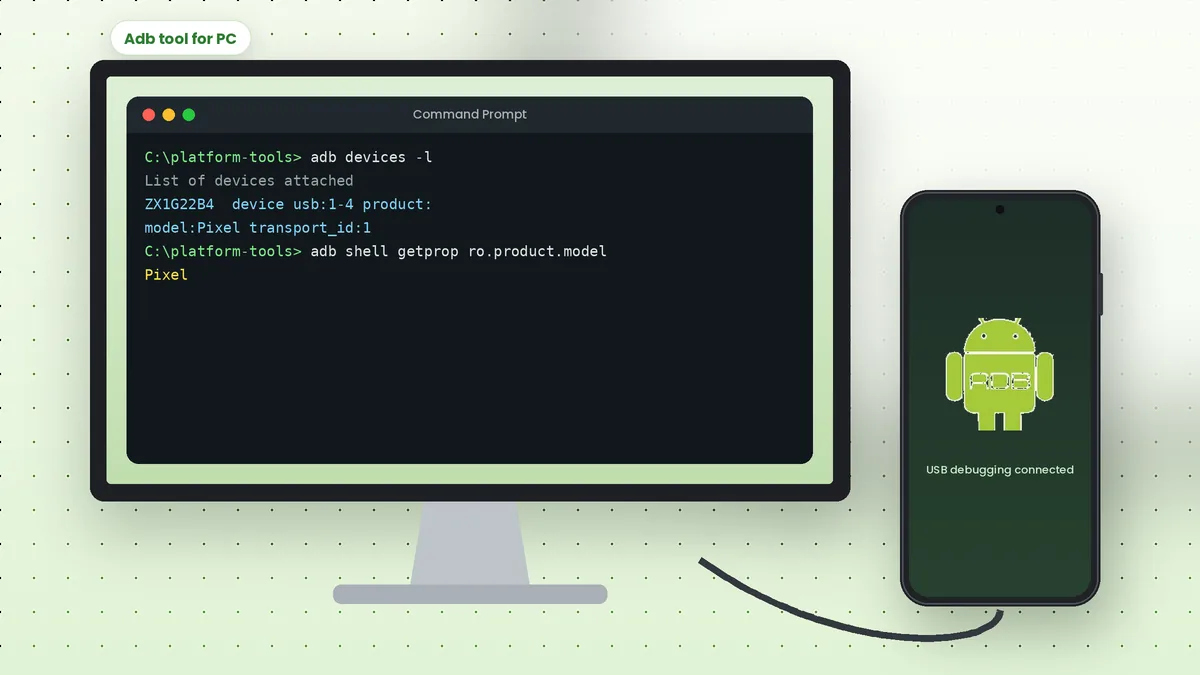 Adb Tool for PC: Connect Your Android Phone to a Computer