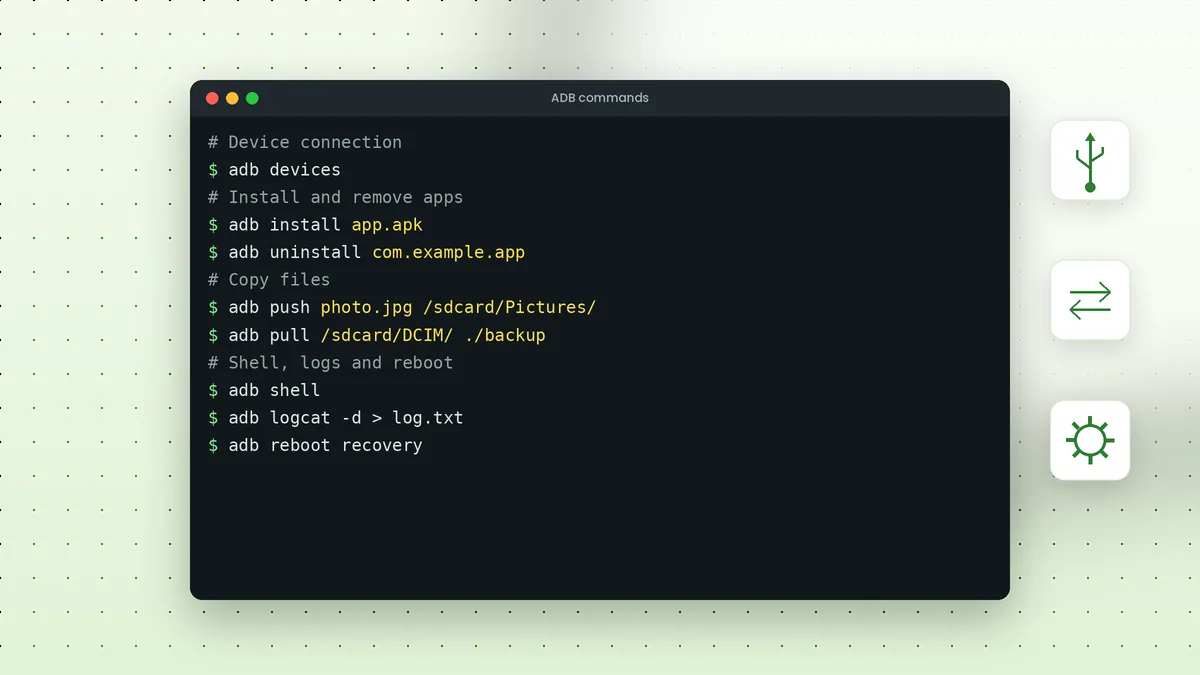
ADB commands follow a simple pattern: the word adb, an optional device selector, then the action you want. Learning a dozen of them covers almost everything people do with Android Debug Bridge, from installing apps to reading logs and rebooting into recovery.
Command Structure Basics
Every command uses the same shape. When only one device is connected, you can skip the selector entirely.
adb [-d | -e | -s SERIAL] command
The -d option targets the only USB device, -e targets the only emulator and -s picks a specific serial number from the adb devices list. Global options always come before the command.
Device and Server Commands
These commands manage the connection between your computer and the phone. They are the first place to look when something stops responding.
| Command | What it does |
|---|---|
| adb devices | Lists connected devices and their state |
| adb devices -l | Adds model and transport details |
| adb get-state | Prints device, offline or bootloader |
| adb kill-server | Stops the ADB server on your computer |
| adb start-server | Starts the server again |
| adb wait-for-device | Pauses until a device is connected |
App Management Commands
Package commands handle installing, removing and inspecting apps. Package names look like com.example.app and are listed with the package manager.
adb install app.apkinstalls an APKadb install -r app.apkreinstalls and keeps dataadb uninstall com.example.appremoves an appadb shell pm list packageslists installed packagesadb shell pm clear com.example.appclears an app's data
Our APK install article explains flags, split APKs and common install errors in more depth.
File Transfer Commands
Two commands move files in each direction. Paths on the phone usually start with /sdcard/, which points to shared internal storage.
adb push photo.jpg /sdcard/Pictures/
adb pull /sdcard/DCIM/Camera/ ./camera-backup
Both commands accept folders as well as single files. Quote any path that contains spaces so the shell passes it as one argument.
Shell Commands
The adb shell command opens a Linux-style shell on the device, or runs a single command when you add it after the word shell. This unlocks many system tools.
adb shellopens an interactive shell; typeexitto leaveadb shell getprop ro.product.modelprints the device modeladb shell wm sizeshows the screen resolutionadb shell dumpsys batteryprints battery detailsadb shell input keyevent 26presses the power button
Screenshots and Screen Recording
ADB can capture the screen without touching the phone. The exec-out form writes the image straight to a file on your computer.
adb exec-out screencap -p > screen.png
adb shell screenrecord /sdcard/demo.mp4
Screen recording stops when you press Ctrl+C or after three minutes by default. Pull the video afterwards with adb pull /sdcard/demo.mp4.
Logs and Debugging
The logcat command streams system and app logs. It is the most useful tool for understanding crashes and odd behaviour.
adb logcatshows a live log streamadb logcat -d > log.txtsaves the current buffer to a fileadb logcat -cclears the log bufferadb bugreportcollects a full diagnostic report as a ZIP file
Reboot Commands
Reboot commands restart the phone into different modes, which matters for recovery tasks and flashing.
| Command | Result |
|---|---|
| adb reboot | Normal restart |
| adb reboot recovery | Restarts into recovery mode |
| adb reboot bootloader | Restarts into the bootloader (Fastboot) |
| adb reboot sideload | Restarts ready for adb sideload on supported devices |
Wireless Commands
After pairing or switching to TCP mode, ADB works over Wi-Fi with these commands. Our wireless ADB article walks through the full process.
adb pair 192.168.0.104:37115
adb connect 192.168.0.104:5555
adb disconnect
Quoting Paths and Special Characters
File names with spaces or symbols need quotes, otherwise the terminal splits them into separate arguments. Double quotes work in Command Prompt, PowerShell and most Unix shells.
adb push "My Photos/holiday 01.jpg" /sdcard/Pictures/
When a shell command runs on the phone, quote the whole remote command so special characters such as pipes are processed on the device rather than on your computer.
Using ADB Commands in Scripts
Because every command runs from the terminal, ADB fits naturally into batch files and shell scripts. A short script can wait for a phone, install a build and launch it in one go.
adb wait-for-device
adb install -r app.apk
adb shell monkey -p com.example.app 1
The monkey line above launches the app's main activity by sending a single event. Scripts like this save time when you repeat the same test after every build.
Device Information Commands
Quick information commands help you confirm you are working with the right phone. They are read-only, so they are safe to run at any time.
adb shell getprop ro.product.modelprints the model nameadb shell getprop ro.build.version.releaseprints the Android versionadb shell df -hshows storage usage per partitionadb shell ip addr show wlan0shows the Wi-Fi address on many phonesadb get-serialnoprints the serial number of the connected device
Combining these with -s SERIAL lets you check several connected phones one after another without unplugging anything.
Getting Help Inside the Terminal
Built-in help keeps you from guessing option names. Running adb help prints every command with a short description, while many shell tools on the phone accept their own help flags, such as adb shell pm help for the package manager or adb shell am help for the activity manager.
Frequently Asked Questions
No. Most commands, including install, push, pull, shell and logcat, work without root. Root only matters for protected system areas.
Yes. The syntax is identical. Only shell features such as quoting and pipes differ slightly between terminals.
Run adb help to print the full list of commands and options supported by your installed version.
Read-only commands are harmless, but commands that clear data, disable packages or flash partitions can cause data loss. Check each one before running it.
Conclusion
ADB commands become easy once the pattern clicks: adb, an optional device selector and an action. The device, app, file, shell, log and reboot groups above cover nearly every everyday task.
Bookmark this list, and pair it with our troubleshooting article for the moments when a command cannot find your phone.
 Adb Tools GitHub: Android ADB and Fastboot App Overview
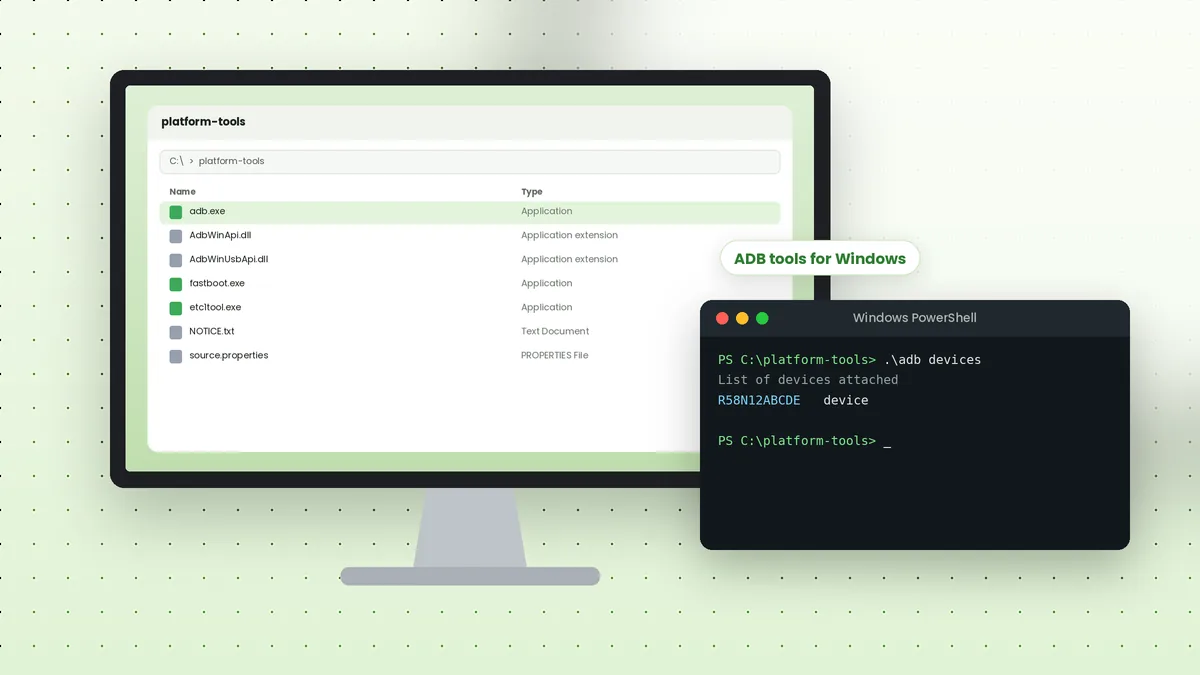 ADB Tools Download for Windows: Complete Setup Walkthrough
 Adb Tool for PC: Connect Your Android Phone to a Computer