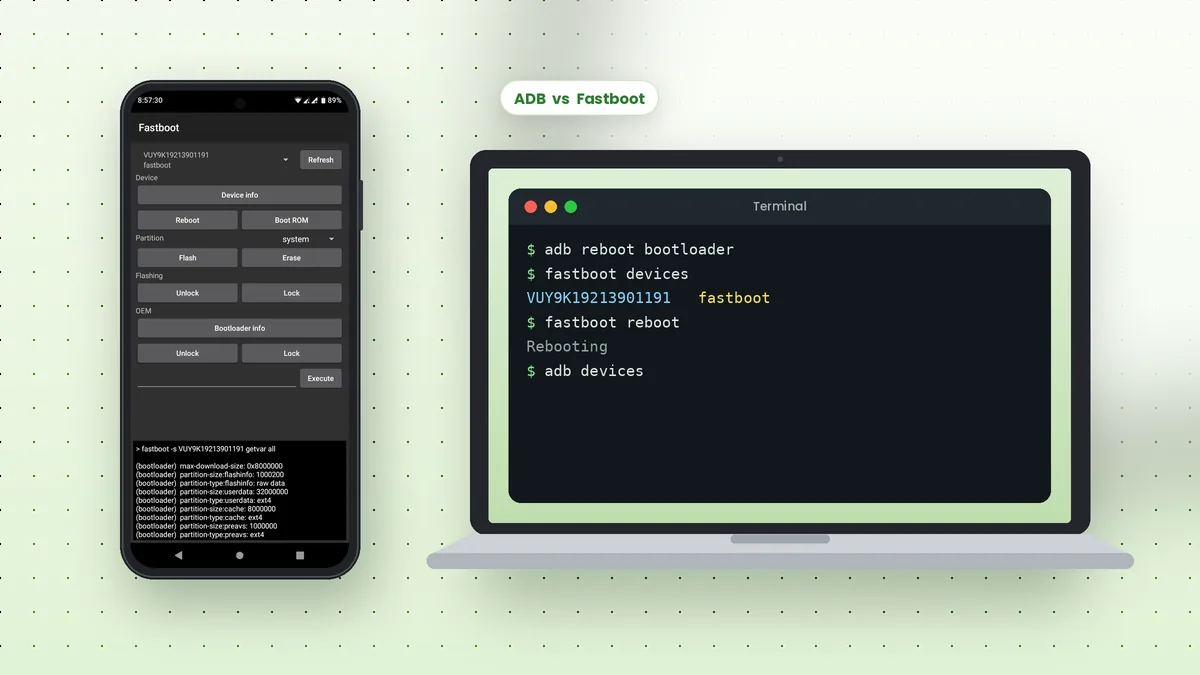
ADB vs Fastboot is a common point of confusion, because both tools ship together in SDK Platform-Tools and both talk to Android phones from a computer. They work at very different stages of the device, though, and each one can do things the other cannot.
The Short Answer
ADB talks to a phone while Android is running, or in recovery mode. Fastboot talks to the phone's bootloader, before Android starts. Think of ADB as a tool for using the system and Fastboot as a tool for changing what boots.
| Aspect | ADB | Fastboot |
|---|---|---|
| Phone state | Android running or recovery | Bootloader (Fastboot mode) |
| Main use | Apps, files, shell, logs | Flashing and bootloader tasks |
| Needs USB debugging | Yes | No |
| Wireless option | Yes | No, USB only |
| Data risk | Low for most commands | High for flash and unlock |
What ADB Does Best
ADB covers everyday device management. It installs and removes apps, copies files both ways, opens a shell, captures screenshots and streams logcat output for debugging.
It also handles sideloading OTA update packages from recovery with adb sideload, and it can restart the phone into other modes, including the bootloader where Fastboot takes over.
What Fastboot Does Best
Fastboot writes and manages partitions. It flashes factory images, boot images and recovery images, unlocks or relocks the bootloader on supported phones, and can boot an image temporarily without installing it.
fastboot deviceslists phones in bootloader modefastboot flash boot boot.imgwrites an image to a partitionfastboot boot image.imgboots an image once without flashingfastboot flashing unlockunlocks the bootloader on supported devicesfastboot rebootrestarts into Android
Unlocking the bootloader usually erases all data on the phone, and flashing the wrong image can leave it unable to boot. Back up first and use files made for your exact model.
How to Move Between the Two
The easiest path from ADB to Fastboot is a single command while Android is running. Fastboot then sees the phone, and a reboot command returns it to Android.
adb reboot bootloader
fastboot devices
fastboot reboot
You can also enter the bootloader with a button combination during startup, often Power plus Volume Down. The exact keys vary by manufacturer.
When Each Tool Sees Your Phone
A quick test tells you which tool is active. Only one responds at a time, depending on the phone's state.
- Android running with USB debugging on:
adb devicesshows device - Recovery mode: ADB may work, depending on the recovery
- Bootloader screen:
fastboot deviceslists the phone - Samsung Download mode: neither tool connects; Samsung uses its own protocol
Fastboot on Another Phone
The android-adb-tools app on GitHub includes a Fastboot screen with buttons for Device info, Reboot, Boot ROM, Flash, Erase, Unlock and Lock, letting a rooted phone run these actions on a connected device through an OTG cable.
Common Tasks and the Right Tool
Choosing the correct tool first saves time and avoids confusing errors. This table pairs everyday jobs with the tool that handles them.
| Task | Tool | Example command |
|---|---|---|
| Install an app | ADB | adb install app.apk |
| Copy photos to a PC | ADB | adb pull /sdcard/DCIM/ |
| Read crash logs | ADB | adb logcat -d |
| Flash a factory image | Fastboot | fastboot flash boot boot.img |
| Unlock the bootloader | Fastboot | fastboot flashing unlock |
| Apply an OTA package | ADB in recovery | adb sideload update.zip |
Drivers for Fastboot on Windows
Windows treats the bootloader as a separate USB device, so a phone that works with ADB may still need a driver in Fastboot mode. Open Device Manager while the phone shows its bootloader screen to check.
For Pixel phones, the Google USB Driver covers both modes. Other brands supply their own drivers, and some manufacturers use different flashing tools altogether, as Samsung does with Download mode.
Recovery Mode and adb sideload
Recovery sits between the two tools. It is a small separate system that can install update packages, wipe data or reset the phone, and many recoveries accept files over ADB.
Choose Apply update from ADB in the recovery menu, then run adb sideload update.zip on the computer. Use only packages made for your exact model and current software version.
Signs You Are in the Wrong Mode
Error messages often reveal that you are using the wrong tool for the phone's current state. Recognising them saves a lot of guesswork.
adb devicesis empty while the phone shows a bootloader screen: use Fastbootfastboot devicesis empty while Android is running: use ADB or reboot to the bootloaderwaiting for any devicefrom Fastboot: the phone is not in bootloader mode or lacks a drivererror: closedduring sideload: recovery is not ready to accept ADB yet
When in doubt, look at the phone's screen first. Android's home screen means ADB, a bootloader menu means Fastboot and a recovery menu means ADB with limited commands.
Keeping Both Tools Updated
Because ADB and Fastboot share one package, updating platform-tools updates both at the same time. Newer phones sometimes need recent Fastboot features to flash certain partitions, so download the latest package before any flashing session rather than relying on a copy that has sat untouched for months.
Frequently Asked Questions
No. Fastboot is included in the same SDK Platform-Tools package as ADB, in the same folder.
The phone must be in bootloader mode, and on Windows it may need a driver for the bootloader interface. A cable that supports data is also required.
No. Fastboot works over USB only, because the bootloader runs before any network connection exists.
Most ADB commands only affect apps and files, while Fastboot changes partitions directly. Both deserve care, but Fastboot mistakes are harder to undo.
Conclusion
ADB vs Fastboot comes down to timing: ADB works with a running Android system, and Fastboot works with the bootloader before Android starts. Use ADB for apps, files and logs, and Fastboot only when you need to flash images or manage the bootloader.
Start with the ADB commands list for daily tasks, and treat Fastboot as the specialist tool you reach for with a backup in hand.
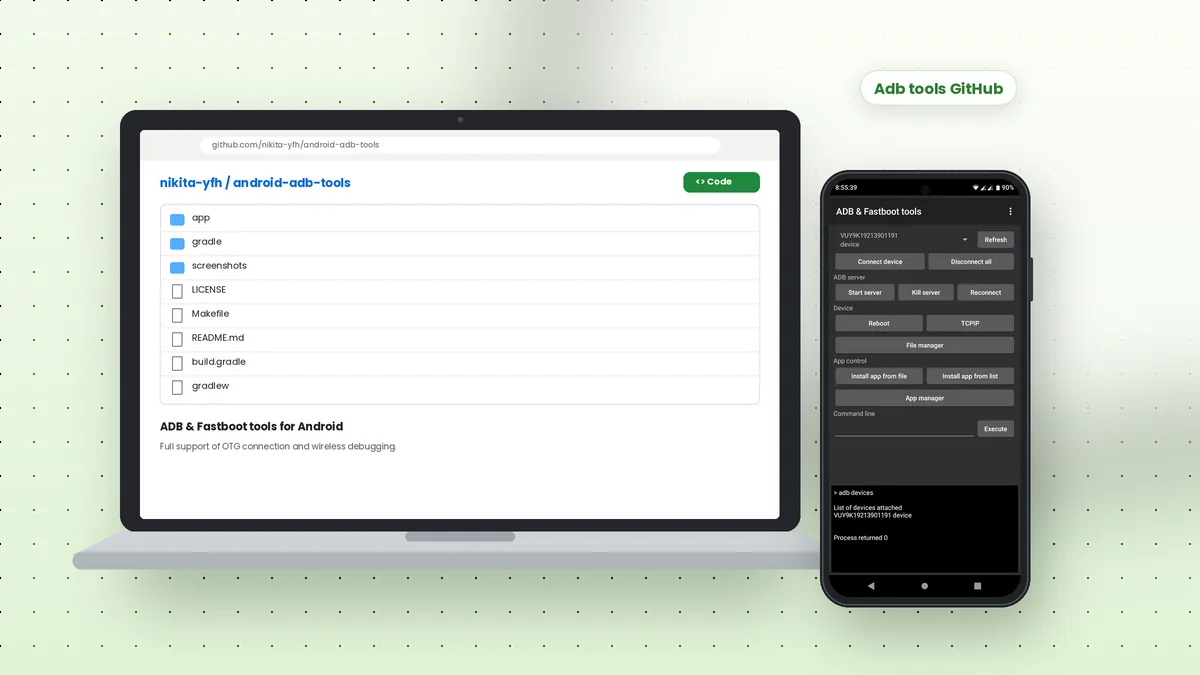 Adb Tools GitHub: Android ADB and Fastboot App Overview
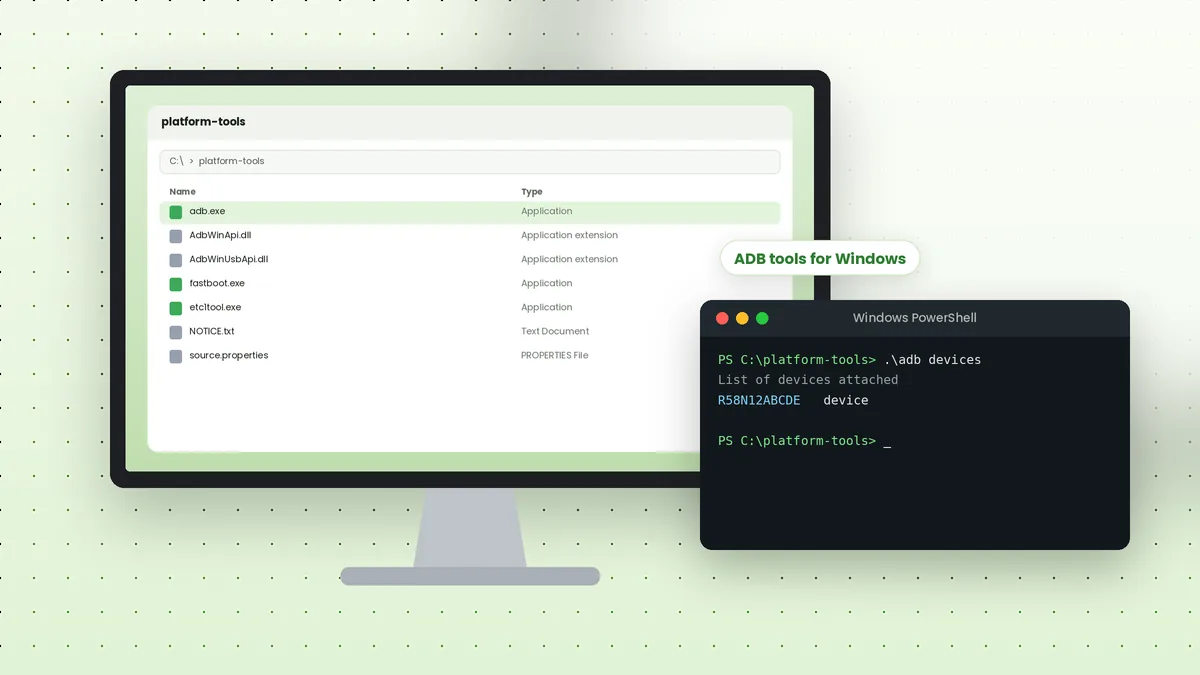 ADB Tools Download for Windows: Complete Setup Walkthrough
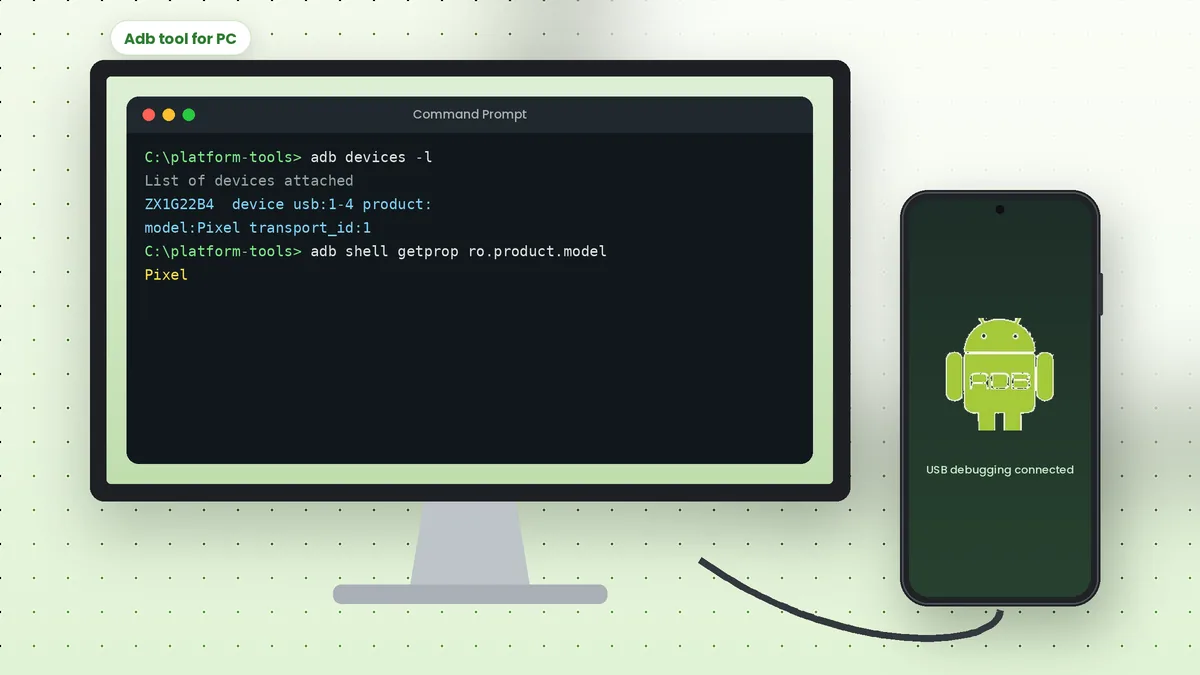 Adb Tool for PC: Connect Your Android Phone to a Computer